
Adding Accounts Payable to Outlook Once Permissions have been set by Finance
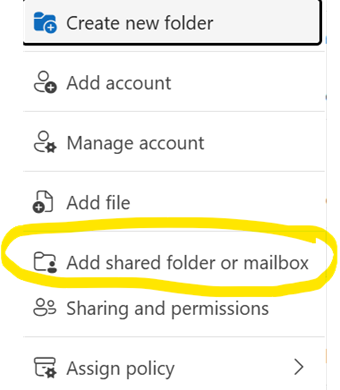
If they cannot see the account they will need to click the three dots next to their westst.org.uk email account in Outlook and select ‘add shared folder or mailbox’ as below:
They will then need to start typing accounts payable to access the account:
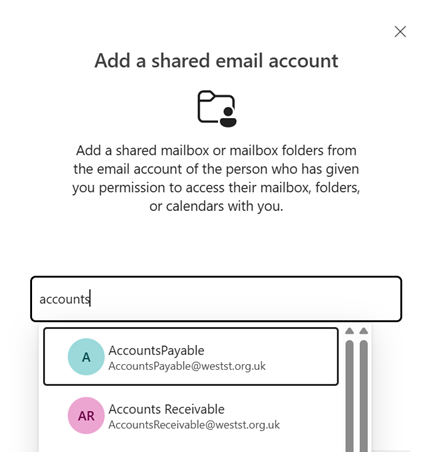
Once it has been added they will have access to the school specific folder within Accounts Payable that they have given permissions for. The Accounts Payable email account then will display under their own account in Outlook. They also may need to drop down the arrow to next to the Accounts Payable mailbox to expand it to see the specific school folder.