
Source: https://lazyadmin.nl/office-365/export-office-365-mailbox-to-pst/
Requirements to Export Mailbox to PST in Office 365
We are going to use the Content Search and eDiscovery Export Tool to export an Office 365 mailbox to PST. To use the Content Search, you will need to have the eDiscovery Manager role in the Microsoft 365 Compliance Center.
A global administrator doesn’t have this role by default, so first, we are going to give your account the proper permissions. You will need to be a global administrator to change permissions.
1. Log in to the Microsoft 365 Admin Center
2. In the menu, click on Microsoft Purview to open the Purview Admin Center
3. Click on Settings
4. Expand Roles and scopes
5. Choose Role groups
If you are still using the classic Purview portal, then follow these steps in the Purview Admin Center to open the Purview roles:
- Click on Roles & Scopes > Permissions
- Open the Microsoft Purview Roles
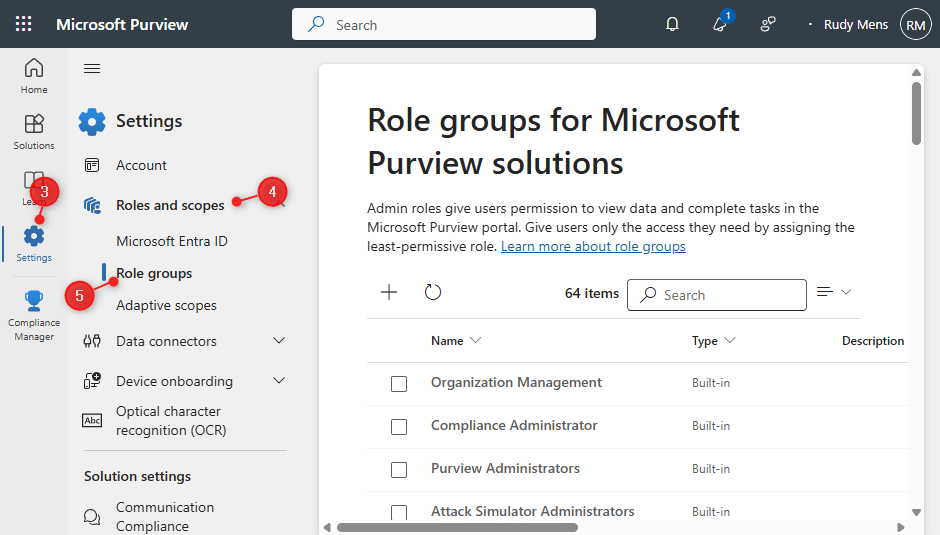
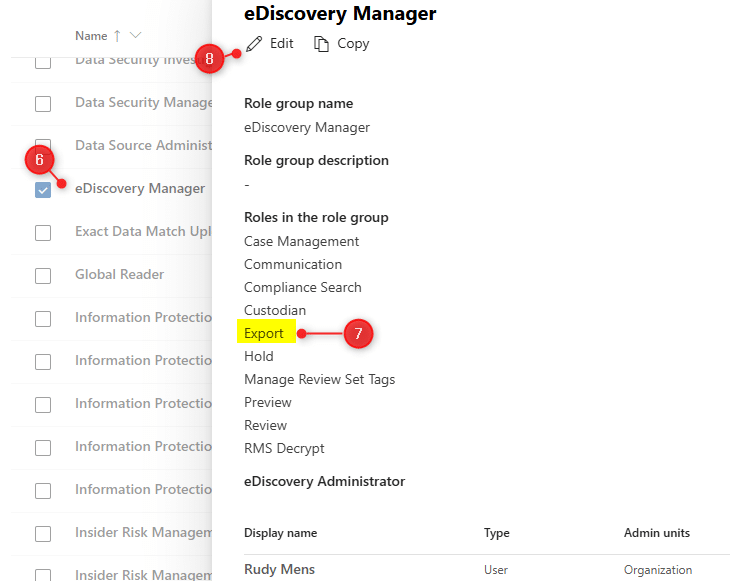
6. Select eDiscovery Manager
7. Make sure that the Export Role is listed in the Assigned Roles (otherwise, add it)
8. Click on Edit to add the eDiscovery administrator
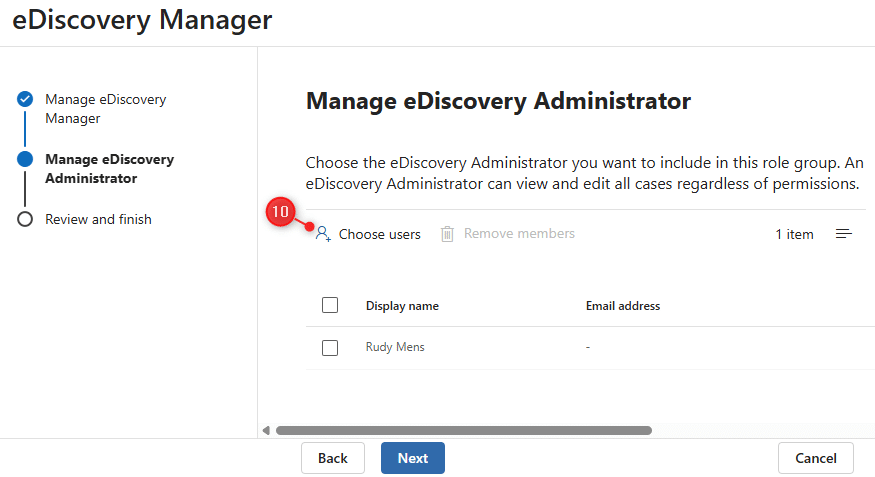
9. Click Next (skipping the eDiscovery Manager)
10. Click Choose users
11. Look up your account and add it to the list
12. Click Save to complete
We now have the proper permissions to start a Content Search and export an Office 365 mailbox to PST. To apply the new permissions, it’s best to log out, close the tab, and log back in again.
Office 365 Export Mailbox to PST
To export a mailbox out of Office 365, we first need to create a Content Search that will collect all the mail of the specified user. Then we can export the result to a PST file and download them directly from the Content Seach Process Manager
1. Open the Microsoft Purview
Open https://purview.microsoft.com/
2. Create a new Content Search
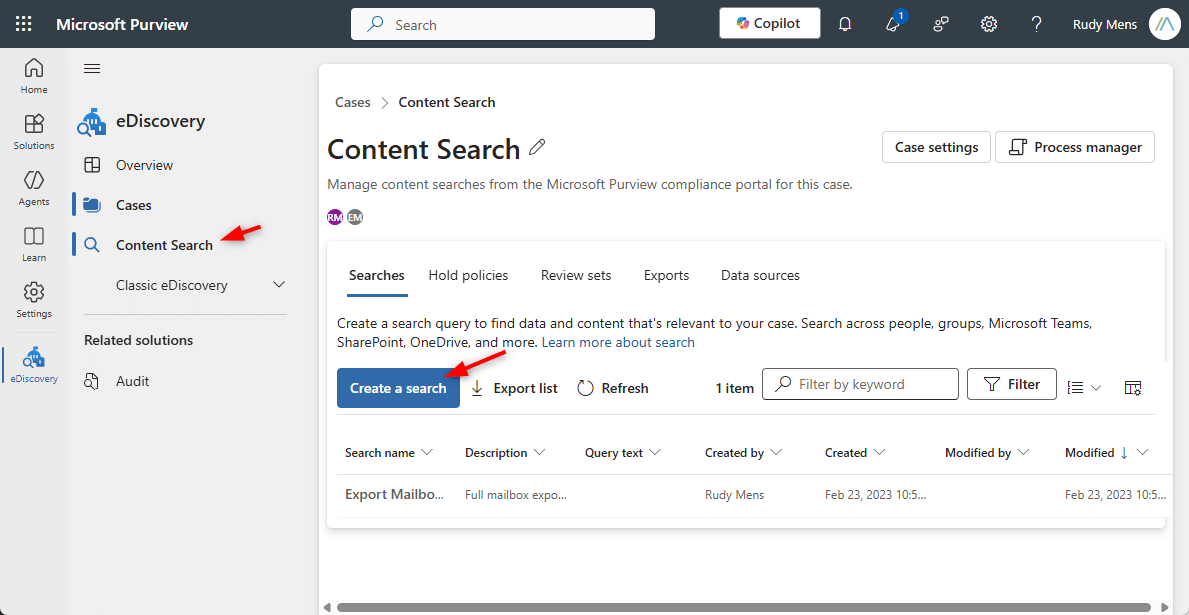
– Click on Solutions and open eDiscovery
– Select Content Search
– Click Create a search
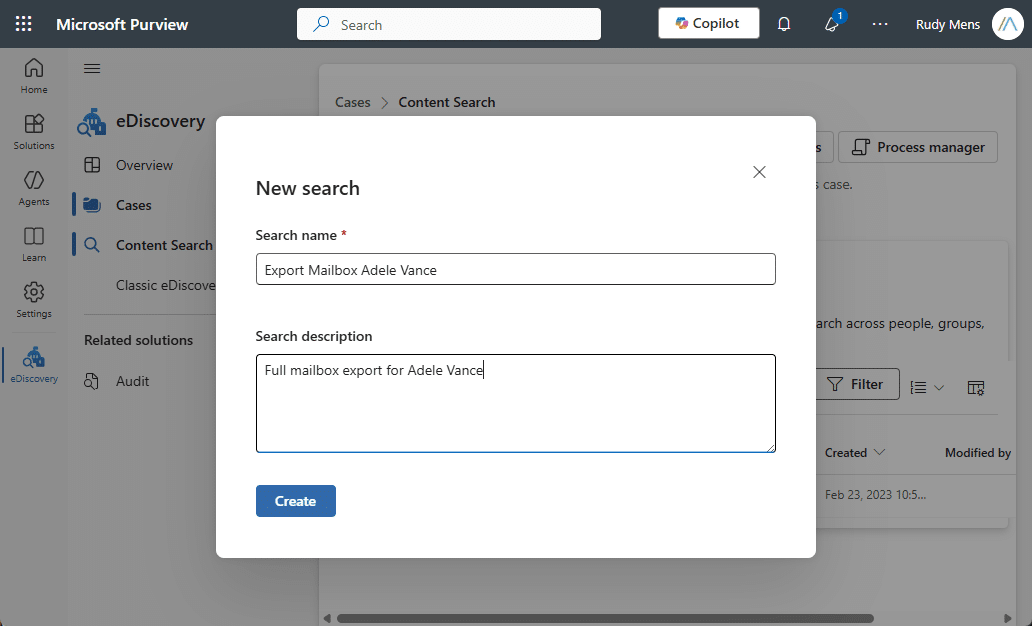
3. Enter a name and description
Give your content search a recognizable name and description and click Next. This helps you later with identifying the correct content search.
4. Add Data Source (Mailbox)
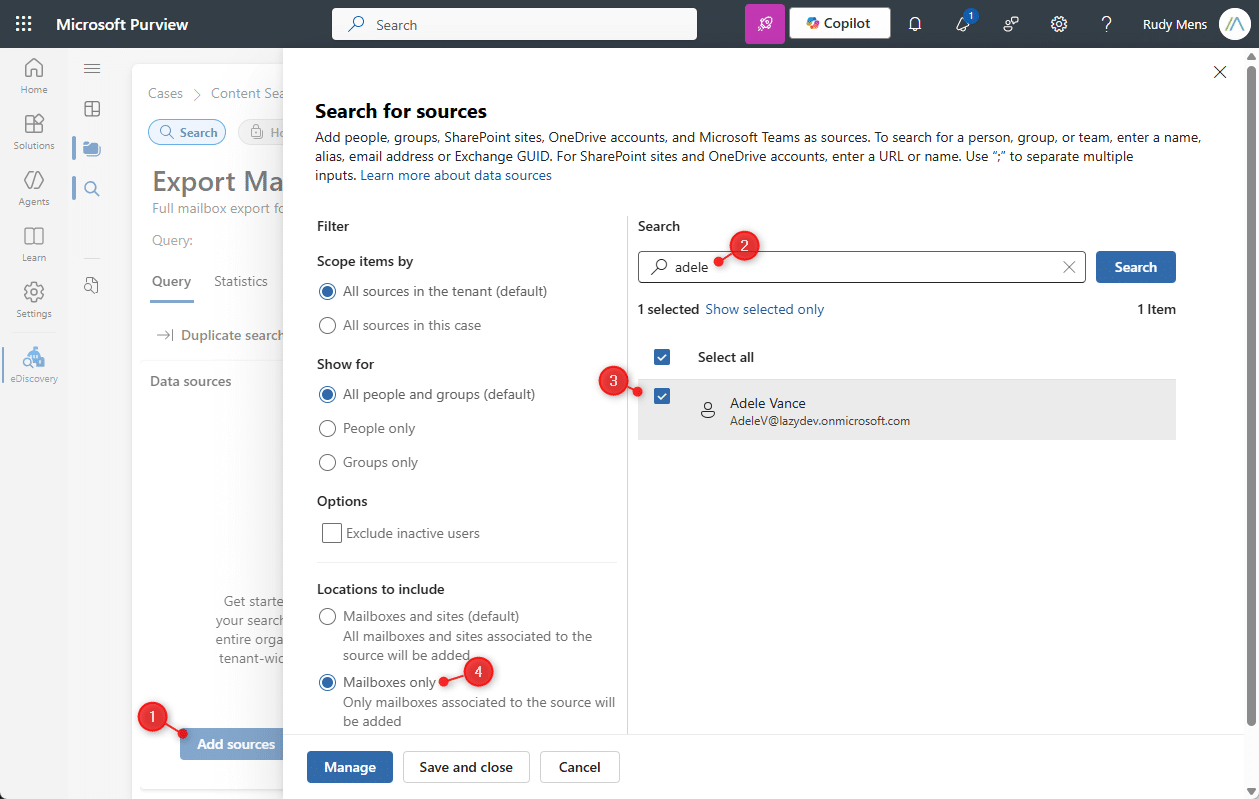
We will now need to add the data source to the content search.
1. Click on Add Sources
2. Search for the user (Adele in this case)
3. Select the user
4. Select Mailboxes only for locations to include
5. Click on Manage and then Save
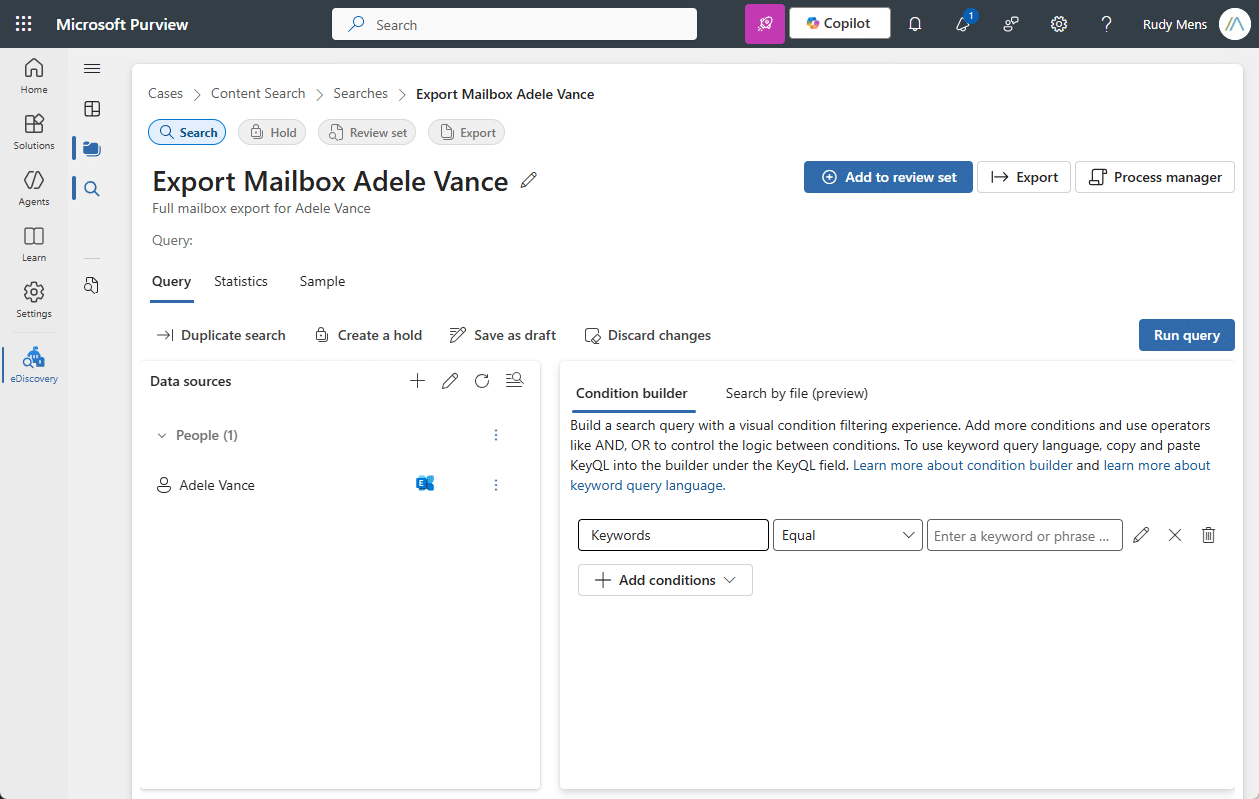
5. Leave Conditions empty
We want to export the complete mailbox, so we can leave the conditions empty.
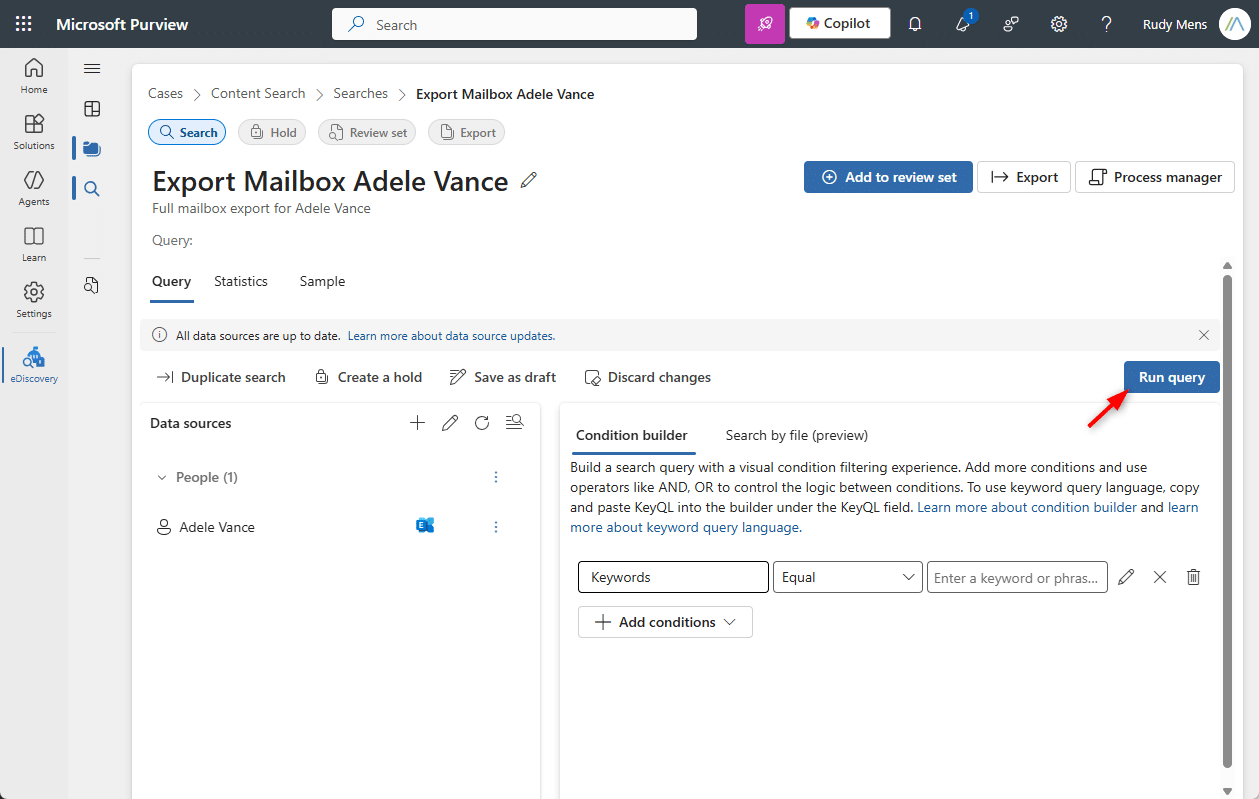
6. Run Query
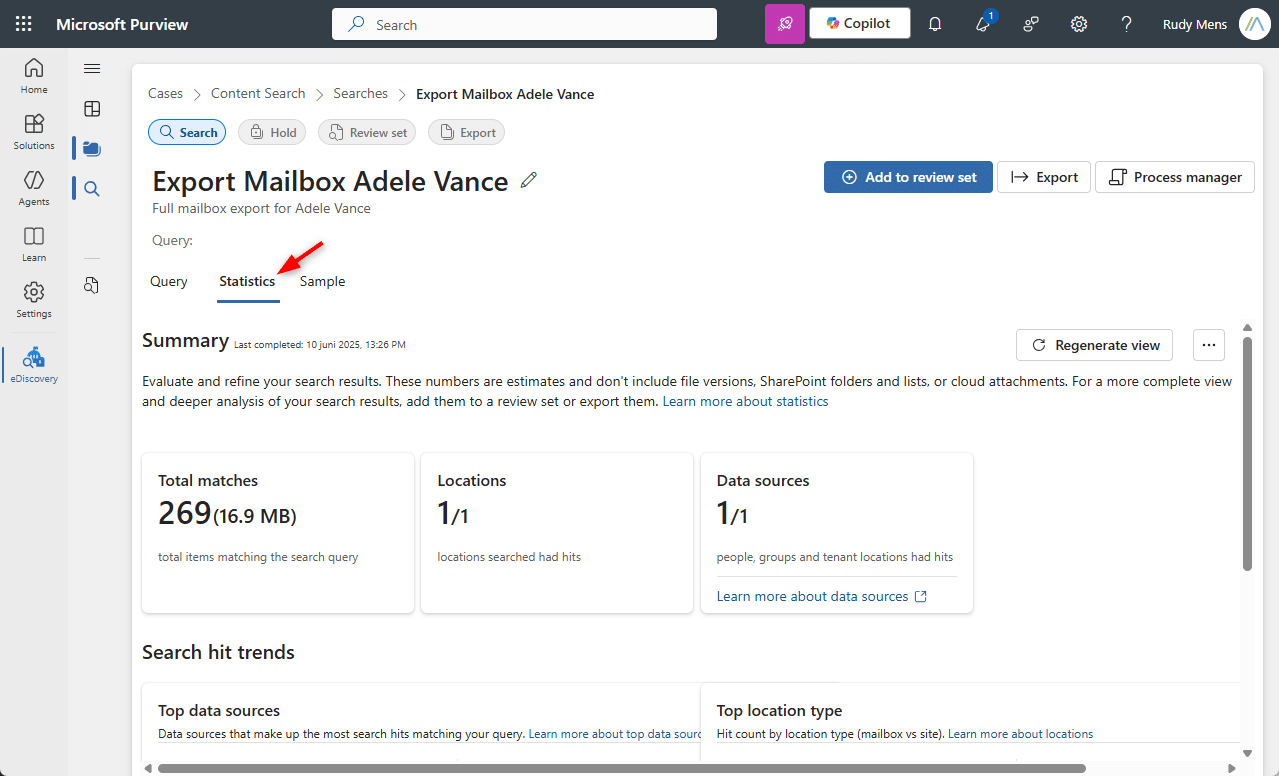
Click on Run Query and use the default search results setting Statistics
7. Wait for the search to complete
Depending on the mailbox size, it can take a couple of minutes to complete the content search. Wait for the search to complete. The easiest is to open/check the Statistics tab, which will show you a summary of the results when done.
8. Export the Microsoft 365 Mailbox to PST
With the search completed, it’s time to export the results
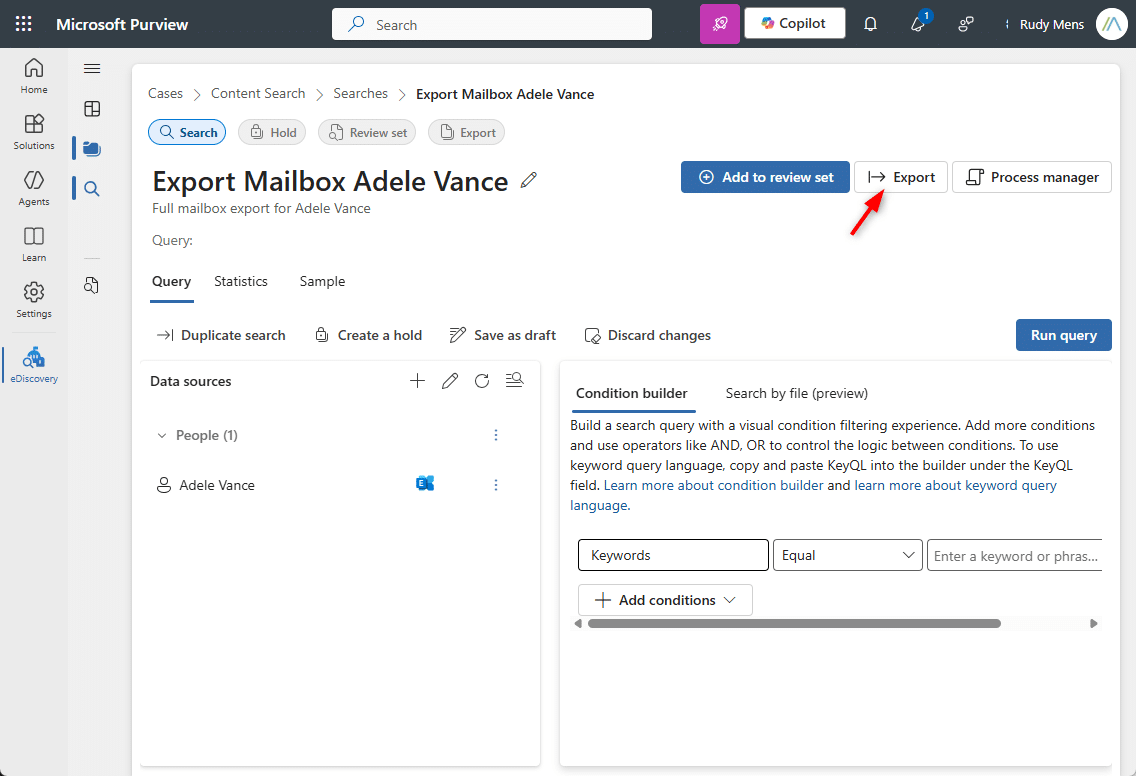
1. Open the Content Search that we have just created (if you have closed it)
2. Click on Export
9. Export Options 1/2
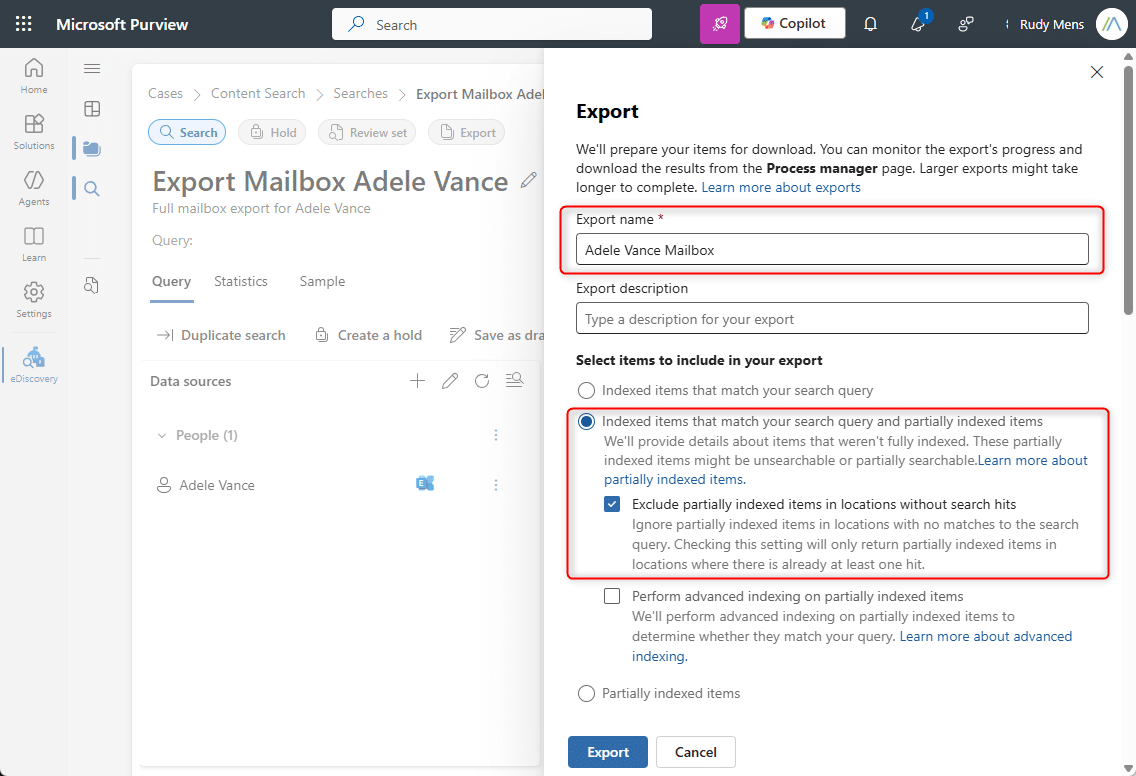
The export options will also show settings for OneDrive, SharePoint, and Teams items. But our data source only includes mail items, so we only need to check and change those settings.
– Add an Export Name
– Select Indexed items that match your search query and partially indexed items
– Scroll down for the next step
10. Export Options 2/2
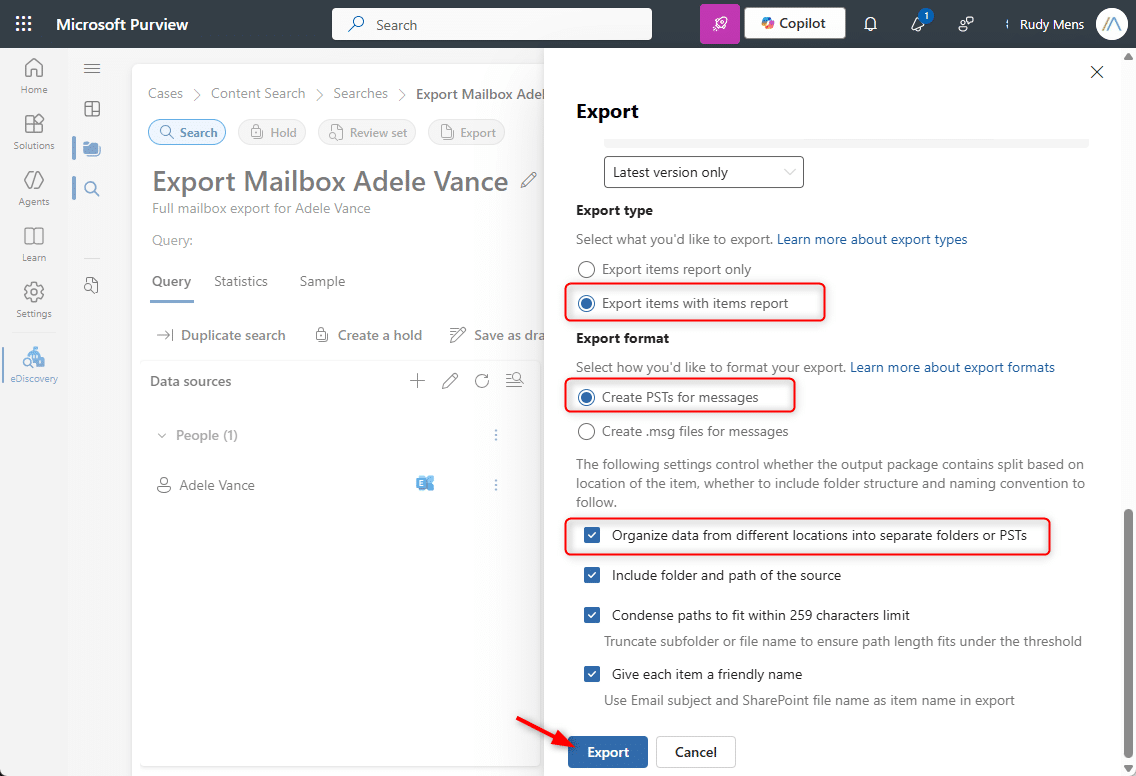
– Export type – Export Items with items report
– Export Format – Create PSTs for messages
– Leave the default options on
– Click on Export
11. Download the Office 365 export mailbox PST file
Again, it can take a couple of minutes for the download file to get ready.
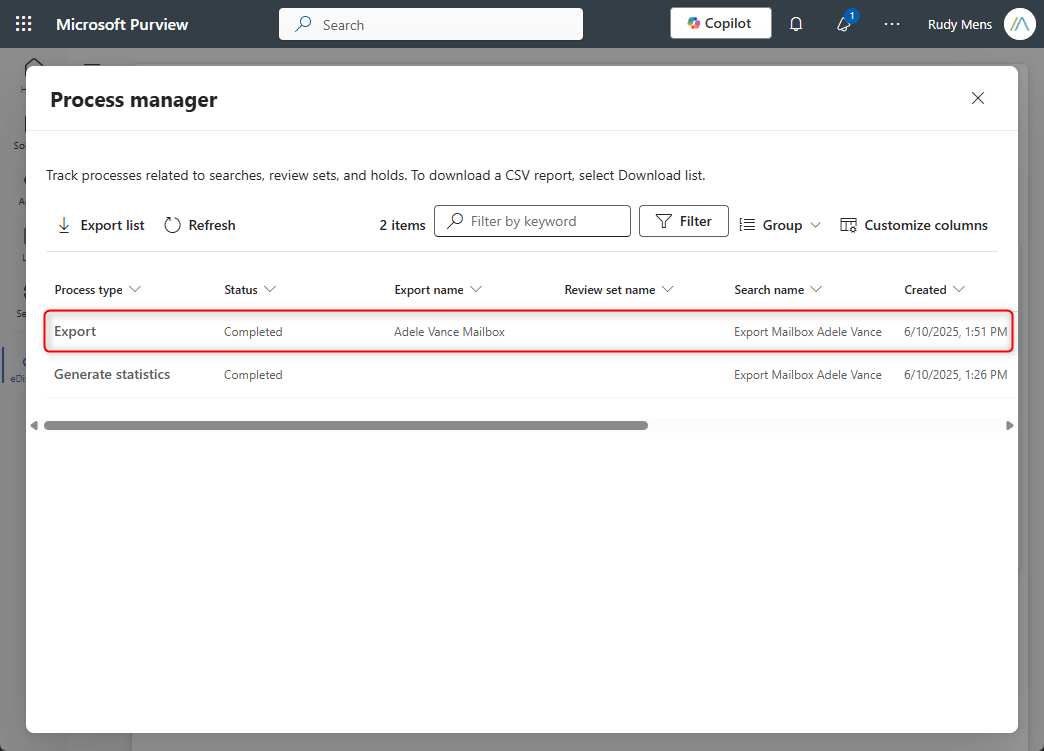
– Open the Process Manager (top right corner) and wait for the status of the Export to be completed
– Click on Export to open it
12. Download the Export Files
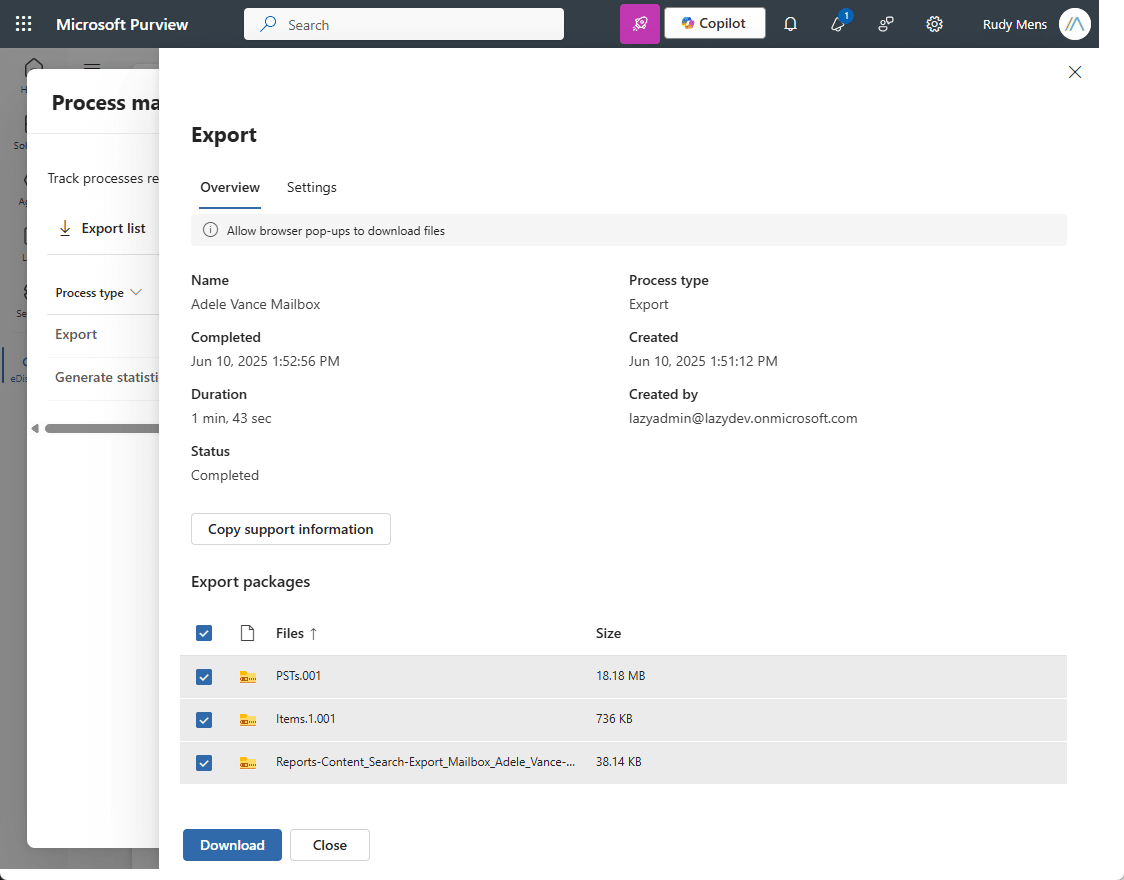
Depending on the content search that you did, you will see multiple files that you can download.
Select all the files and Click on Download
13. Allow Pop-ups to download all files
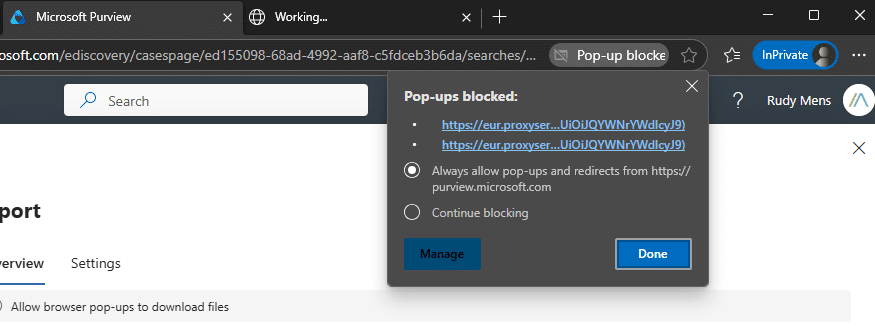
If there are multiple files listed, then each will be downloaded separately. Make sure that you allow Pop-ups so that all the files are downloaded (otherwise, you will only see 1 file in your download folder.
Inside the zip file, you will find the PST with the mail items.
You can also use these steps to download multiple mailboxes at once. Just select multiple users or mailboxes at step 4, and make sure that you select one PST file for each mailbox in step 11